Rethinking Device Compliance: From Manual Remediation to Closed-Loop Automation

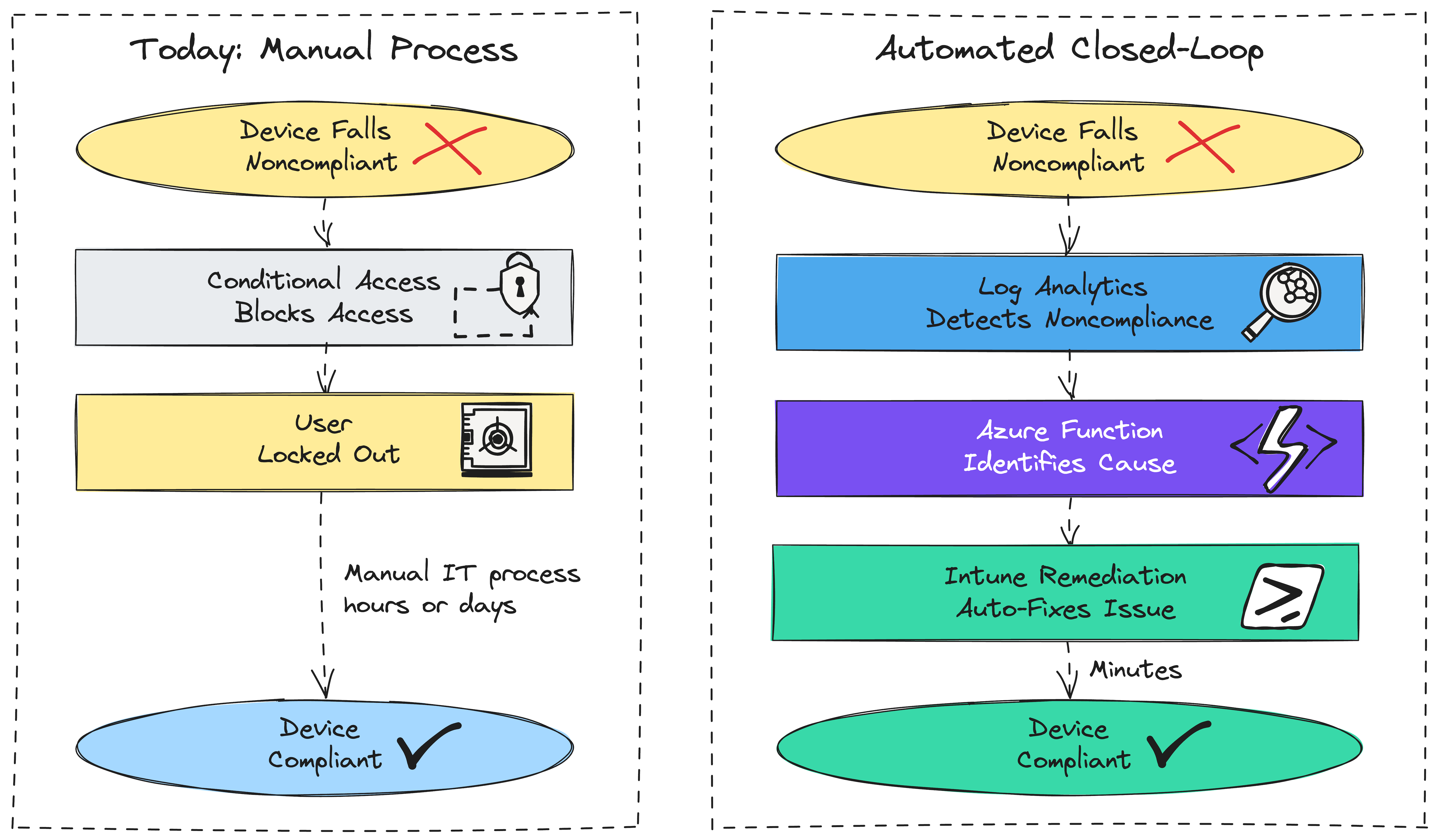
With the current threat landscape, device compliance is no longer a checkbox to keep auditors happy. We've reached a point where it is a requirement for maintaining regulatory compliance, keeping cyber insurance in good standing, and protecting our devices, users, and resources from attackers.
While solutions like Microsoft Entra Conditional Access can block noncompliant devices from accessing sensitive resources in real time, remediating them is still largely a manual process. That gap leaves devices in a vulnerable state and can lock users out of the tools they need to do their jobs.
To demonstrate this shortcoming, I'd like to share a scenario.
Meet Jared 🤓
Jared is a bright, young IT professional with a cybersecurity degree and multiple certifications. Jared recently landed an IT help desk role to spend time in the trenches of modern IT and add real-world experience to his resume. He's eager, goes the extra mile on tickets, and works after hours when needed.
A ticket comes in on a Wednesday afternoon from Rebecca, the Finance Director, reporting a blue screen error (BSOD) on every boot with the device unable to load the OS. Jared jumps right on it. Since remote access isn't an option when the device can't load the OS, Jared grabs his gear and heads on-site.
When he arrives, Jared looks up the generic BSOD error code and finds that a faulty driver is a common culprit. He determines the best next step is to boot into Safe Mode for diagnostics. Since the device is caught in a BSOD loop, Windows automatically launches WinRE after two consecutive failed boots. Jared navigates to Startup Settings and clicks Restart to enable Safe Mode. He's immediately prompted for the BitLocker recovery key for the drive. He pulls up the Entra ID admin portal, locates the recovery key for Rebecca's device, enters it, and the system boots into Safe Mode.
Jared enables boot logging, but before rebooting, he decides to disable BitLocker so he won't have to look up that recovery key every time he needs to get back into Safe Mode. He understands the importance of drive encryption and plans to re-enable it once he's done. Control Panel won't cooperate in Safe Mode, so he opens PowerShell as an Administrator and runs: manage-bde -off C:
He restarts the machine, gets a BSOD as expected, and WinRE launches again. Jared boots back into Safe Mode - this time without the BitLocker prompt and navigates to C:\Windows\ntbtlog.txt to review the boot log. He finds the last driver entry, looks it up, and discovers that a recent update addresses a known issue with that exact driver. He downloads it, installs it, and restarts. The system boots cleanly without a blue screen. Jared saves the day. 🎉
He closes the ticket and clocks out for the day. What he doesn't realize is that he forgot to re-enable BitLocker...
The Aftermath
What Jared doesn't know is that there's a compliance policy configured requiring BitLocker to be enabled on all devices. By Thursday morning, Rebecca's device has checked in with Intune, been evaluated against that policy, and flagged as noncompliant. To make matters worse, a Conditional Access policy is configured to block access to the organization's third-party financial SaaS application (configured as an Enterprise App) from any device that isn't compliant.
Rebecca signs in Thursday morning using her enterprise Microsoft credentials, as she does every day, except this time she's greeted with a message telling her that her device isn't compliant. Today isn't a day she can afford to be locked out: she needs to approve payroll so that direct deposits and checks can be processed for employees. She calls IT.
The ticket escalates straight to T3. Kevin, the T3 technician, pulls up the Entra ID sign-in logs and immediately confirms that Conditional Access is blocking Rebecca's access due to a noncompliant device. He digs into the compliance details and finds the culprit: the BitLocker requirement.
Kevin remotes into Rebecca's machine, confirms that BitLocker is disabled, and re-enables it. With BitLocker back on, the device should return to a compliant state. Kevin opens the Company Portal app to re-evaluate compliance.
Eventually, the device updates to compliant in Intune. Rebecca can sign back into the financial application and get back to work.
This is the current state for most organizations. Compliance catches the problem eventually, but remediation still requires a human in the loop. The question isn't whether Jared should have re-enabled BitLocker (he should have). It's whether the organization's infrastructure should have been able to detect, fix, and restore access automatically before Rebecca ever sat down at her desk.
That's what this series is about.
Is Config Refresh the Answer?
Windows 11 has a feature called Config Refresh that can be enabled and configured through Intune and periodically re-applies MDM Policy CSP settings to a device without requiring a full check-in with Intune. It's essentially a self-healing mechanism for configuration drift: if a setting managed by a configuration profile gets changed locally, Config Refresh re-applies the correct value on a configurable cadence as frequently as every 30 minutes.
Config Refresh is a useful tool in the right context, and enabling it is worth doing. But it's scoped to a specific class of problem: Policy CSP-managed settings that get overwritten by local changes. The compliance failures most likely to lock a user out of their work require something more.
Blocking noncompliant devices and Config Refresh are a step in the right direction, but when we resort to automatically blocking access to critical resources with policy, we need to start thinking about being more proactive and automating config drift remediation as well.
Something to keep in mind: Config Refresh is not enabled by default. It has to be explicitly enabled via the Intune Settings Catalog, and most organizations haven't done it.
What We're Building
In future posts, we'll look at configuration drift that causes devices to fall out of compliance, and how Intune can remediate noncompliance without the need for custom solutions. In scenarios where Intune cannot correct the issue, we'll look at building automated end-to-end solutions that can detect, report, and remediate noncompliant devices without the user ever noticing any disruption. Tools such as Log Analytics Workspace, Azure Functions, Intune Remediations, and Custom Compliance Policies can help us along the way.
Summary
Device compliance without automated remediation enforces consequences but can't fix the underlying problem. As Jared and Rebecca's story shows, the gap between detection and resolution is where users lose access and business stops.