Enabling Config Refresh Is a No-Brainer - But Why it's Still Not Enough

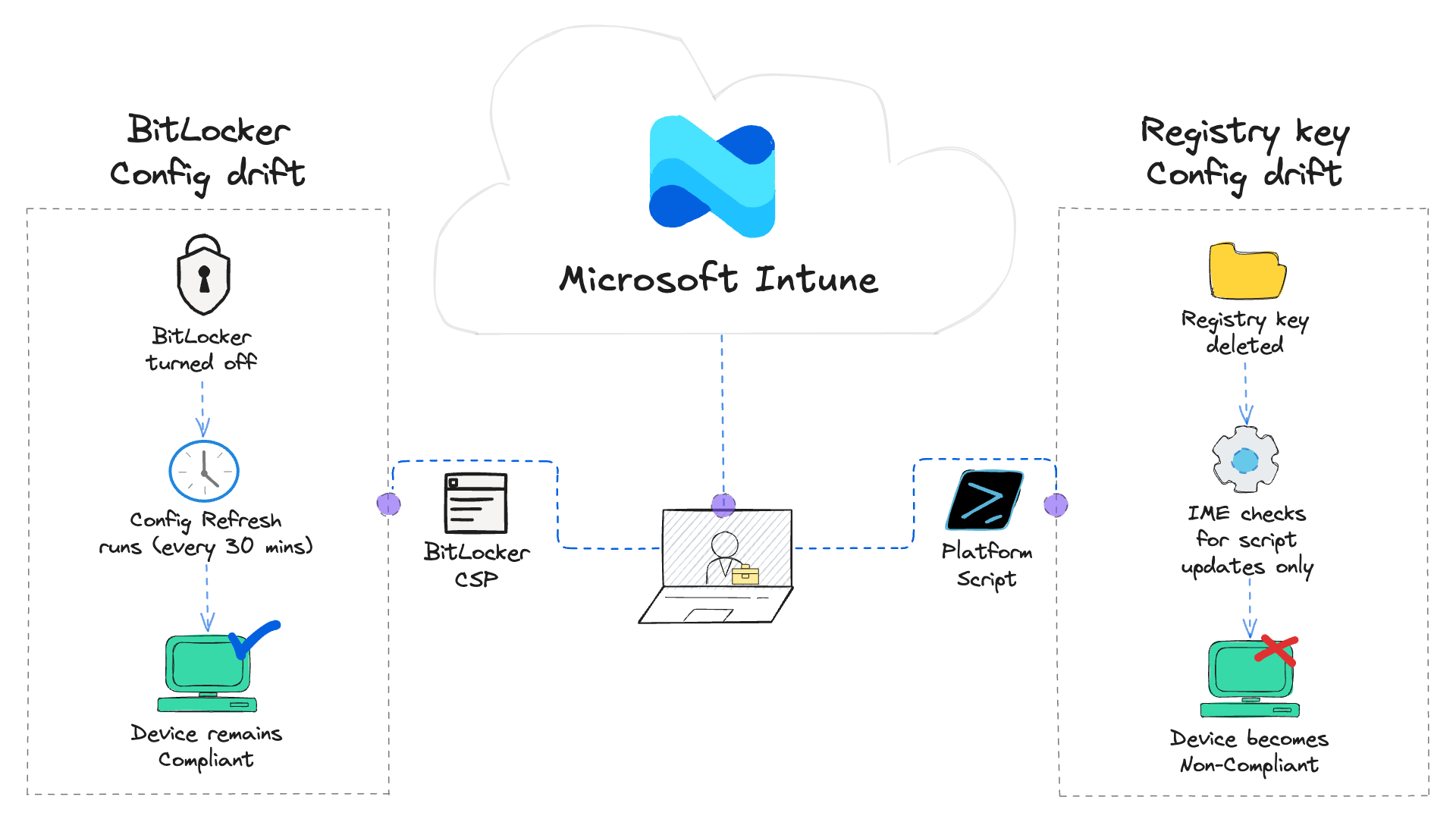
Config drift is a never-ending battle we fight to keep devices secure and compliant. It's important administrators implement tools and strategies to prevent, detect, and remediate config drift in their environments to keep their devices secure and maintain compliance. Config Refresh is a Windows 11 feature that can help with that effort.
This post focuses specifically on Config Refresh - compliance policy configuration and tracking compliance state are topics we'll be covering in dedicated posts throughout this series.
What is Config Refresh?
Let's get one thing out of the way: Config Refresh is not an Intune feature - it is a Windows 11 feature that can "refresh" CSP Policy backed settings on a specified interval.
When Config Refresh is configured, a Task Scheduler job is created on the Windows 11 endpoint that executes on a configured interval - for example, every 30 minutes. When the Task Scheduler job kicks off, it runs the following System32 executable with the following arguments: %windir%\system32\deviceenroller.exe /ConfigRefresh /o {GUID}
Prerequisites
- Microsoft Intune subscription
- Windows 11 Pro, Enterprise, or Education edition
Configure Config Refresh with Intune
- Navigate to the Intune admin center
- Click Devices > Manage devices > Configuration > + Create > + New policy
- Platform: Windows 10 and later
- Profile type: Settings catalog
- Create profile:
- Name: Enable Config Refresh
- Click + Add settings > Search for
Config Refresh - Select the following settings: Config Refresh and Refresh cadence
- Configure settings:
- Config Refresh: Enabled
- Refresh cadence: 30 (in minutes)
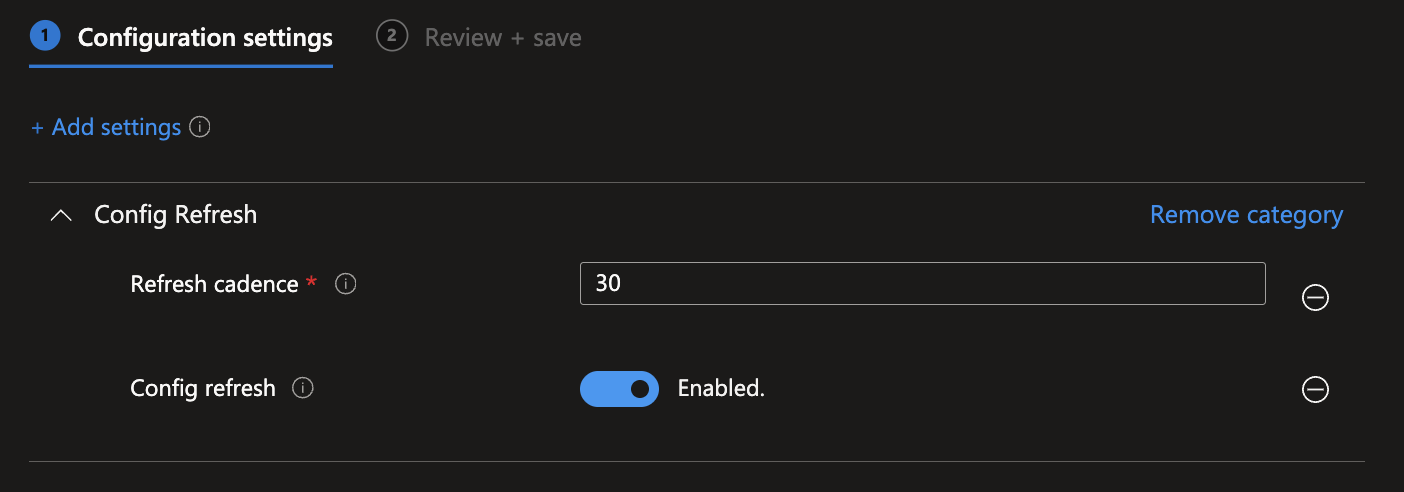
- Click Next > Assign to appropriate groups > Next > Create
That's it, all your config drift problems are solved. Just kidding. 😄
Confirm Config Refresh is enabled on a device by checking the following registry key:
HKLM\SOFTWARE\Microsoft\Enrollments\{GUID}\ConfigRefresh
What Config Refresh Will Fix
Let's look at a scenario where Config Refresh should fix config drift. According to the Config Refresh announcement by Microsoft, any Bitlocker CSP polices should get refreshed at the 30 minute refresh cadence that was configured in the Config Refresh policy. Let's put that to the test.
In this example, an Intune policy has been created that will silently enable BitLocker encryption on the primary OS drive of the endpoint.

The drive encryption status can be verified on the endpoint by running the following command in an elevated PowerShell prompt:
manage-bde -status

Now that we can see BitLocker has been enabled by the Intune BitLocker policy, and that the drive has been fully encrypted, let's try to recreate the Jared scenario from our earlier blog post. To do that, we'll disable BitLocker encryption directly on the device by running the following command in an elevated PowerShell prompt:
manage-bde -off C:
If Config Refresh works the way it should, the BitLocker CSP should get "refreshed" and re-enable BitLocker.
Since we're a little impatient, we don't have to wait the full 30 minutes for Config Refresh to kick in. Thanks to Rudy Ooms and his blog post on Config Refresh, we know where the Task Scheduler job responsible for executing deviceenroller.exe every 30 minutes is located.
The Config Refresh Task Scheduler job is located under Microsoft\Windows\EnterpriseMgmtNonCritical.

After manually running Config Refresh from Task Scheduler, BitLocker encryption has already begun re-encrypting the drive. 🎉

If Config Refresh had been enabled in Jared's organization, BitLocker would have been automatically re-enabled within 30 minutes of being disabled, long before Rebecca sat down at her desk Thursday morning.
What Config Refresh Won't Fix
Next, let's look at a scenario where Config Refresh won't be able to remediate config drift. The WinVerifyTrust vulnerability is a common vulnerability that is flagged by major vulnerability scanners like Tenable. Microsoft has mitigations in place to remediate this vulnerability; however, enabling it is optional, and the registry keys required to enable it are not enabled by default.
Because custom registry keys are not configured using Policy CSP, we'll need to use a PowerShell script to create the registry keys. Where Config Refresh falls short in this scenario is that it only touches Policy CSP and other CSPs, such as BitLocker, as shown in the previous example, so it doesn't have a way to "refresh" custom registry keys that were configured using a PowerShell script.
Deploy a Platform Script
Custom registry keys can be deployed with Intune in multiple ways, such as using Platform Scripts, Win32 Apps, or Intune Remediations. However, in this example, we'll be deploying the necessary registry keys to enable WinVerifyTrust using a Platform Script.
Below is the PowerShell script used to deploy the WinVerifyTrust registry keys. This is essentially just a remediation script that can be used as a Platform Script as well. The detection and remediation scripts can be found in my Proactive Resilience Github Repo
Be sure to include both the 64-bit and 32-bit registry keys. Excluding the Wow6432Node path leaves 32-bit processes unprotected even if the 64-bit key is correctly configured. Compliance checks that only verify one path will falsely report the device as remediated.
HKLM:\SOFTWARE\Microsoft\Cryptography\Wintrust\Config
HKLM:\SOFTWARE\Wow6432Node\Microsoft\Cryptography\Wintrust\Config
try {
    $registryPaths = @(
        'HKLM:\SOFTWARE\Microsoft\Cryptography\Wintrust\Config'
        'HKLM:\SOFTWARE\Wow6432Node\Microsoft\Cryptography\Wintrust\Config'
    )

    foreach ($path in $registryPaths) {
        New-Item -Path $path -ItemType Container -Force -ErrorAction Stop | Out-Null
        New-ItemProperty -Path $path -Name 'EnableCertPaddingCheck' -Value 1 -PropertyType DWord -Force -ErrorAction Stop | Out-Null
    }
} catch {
    Write-Error "Failed to create registry keys: $($_.Exception.Message)"
}

Get-Service -Name CryptSvc -Verbose | Stop-Service -Verbose -Force -PassThru | Start-Service -Verbose -PassThru
We can see that our PowerShell script to configure the necessary registry keys to enforce the WinVerifyTrust Authenticode padding check has been successfully deployed with an Intune Platform Script.

Here is a look at the detection script that is used in the Platform Script. We can run this same detection script on the client to validate the state of the registry keys.
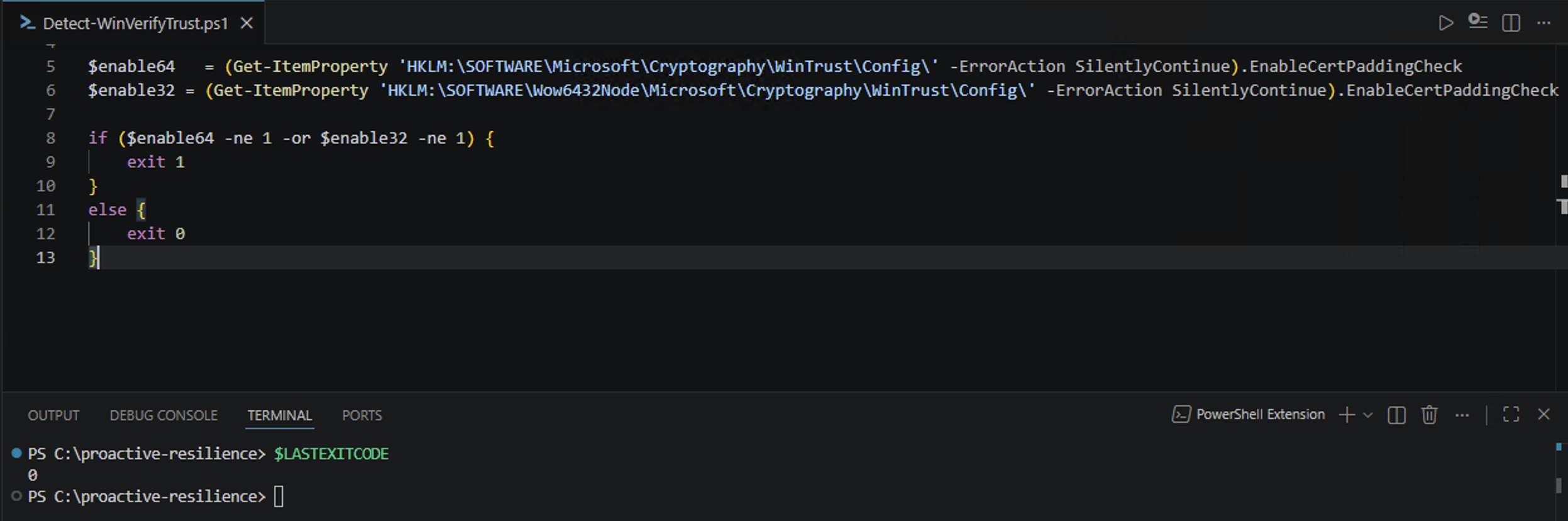
By using the $LASTEXITCODE automatic variable after running the detection script, we validate the exit code. The example above displays a $LASTEXITCODE of 0 indicating that the device has the necessary registry keys configured.
Next, we'll delete one of the required Registry keys to enforce the WinVerifyTrust Authenticode padding check.
Since Platform Scripts, Win32 Apps, and Intune Remediations are all managed using the Intune Management Extension (IME), we can expect Config Refresh won't re-apply the WinVerifyTrust registry key after we manually delete it; however, for the sake of this demonstration, we'll still manually run Config Refresh by running the Config Refresh Task Scheduler job to verify this expected behavior.
After deleting one of the registry keys and re-running the detection script, we can see that $LASTEXITCODE returns a value of 1 indicating that at least one of the conditions are not true in the detection script.

And as expected, after manually running the Config Refresh Task Scheduler job, we see that the WinVerifyTrust registry key has not been re-applied.
What are our Options?
Whenever the use of a PowerShell script is required to configure settings on an endpoint, we need to keep in mind that this process is managed by the IME, so relying on Config Refresh to remediate config drift for PowerShell-backed policy is out of the question. So what options do we have?
Intune Remediations to the rescue.
A Remediation runs a detection script on a specified interval, and if the PowerShell detection script exit code returns a 1, the remediation script will execute - in this case re-applying the registry keys. Similar to Config Refresh, Remediations run on a specified interval, but Remediations use PowerShell for both the detection and remediation logic making them incredibly flexible. Remediations can also be executed on-demand from the Intune admin center or by using the Microsoft Graph API.
If we can use the Microsoft Graph API to run remediations, that means remediations can be event-driven. That sounds promising. 🤔
What are the Limitations of Intune Remediations?
Remediations are a step in the right direction, but they come with two notable limitations worth calling out: The shortest interval a Remediation can run is 1 hour, meaning a device could sit in a non-compliant state for up to an hour before config drift is detected and remediated. Additionally, Remediations require one of the following M365 licenses:
- Microsoft 365 F3, E3, or E5
- Microsoft 365 A3 or A5
- Windows Virtual Desktop Access (VDA) per user
If your organization isn't using one of the M365 SKUs mentioned above, Remediations aren't an option.
How Can We Bridge the Gap?
Although Intune Remediations can catch registry key tampering, the 1-hour minimum interval doesn't give us a predictable detection window. The timer starts from the last time the remediation ran, not from when drift occurred, so a device could sit in a non-compliant state anywhere from a few minutes to a full hour depending on where it is in that cycle when the change happens.
Remediations are absolutely worth implementing - assuming the required M365 licensing is available. That said, we should always be working to tighten the window between drift and remediation. As we move further through the Proactive Resilience series, we'll explore event-driven approaches that can detect and respond to drift as it happens rather than waiting for the next scheduled run.
What's Next
Config Refresh handles Policy CSP drift, and Remediations can catch what Config Refresh can't, but both operate on a schedule, not in response to an event. Before we can build something smarter, we need a reliable way to identify the compliance gaps that built-in policies can't cover. In the next post, we'll look at Custom Compliance Policies and how PowerShell detection scripts extend Intune's compliance evaluation beyond what's available out of the box.